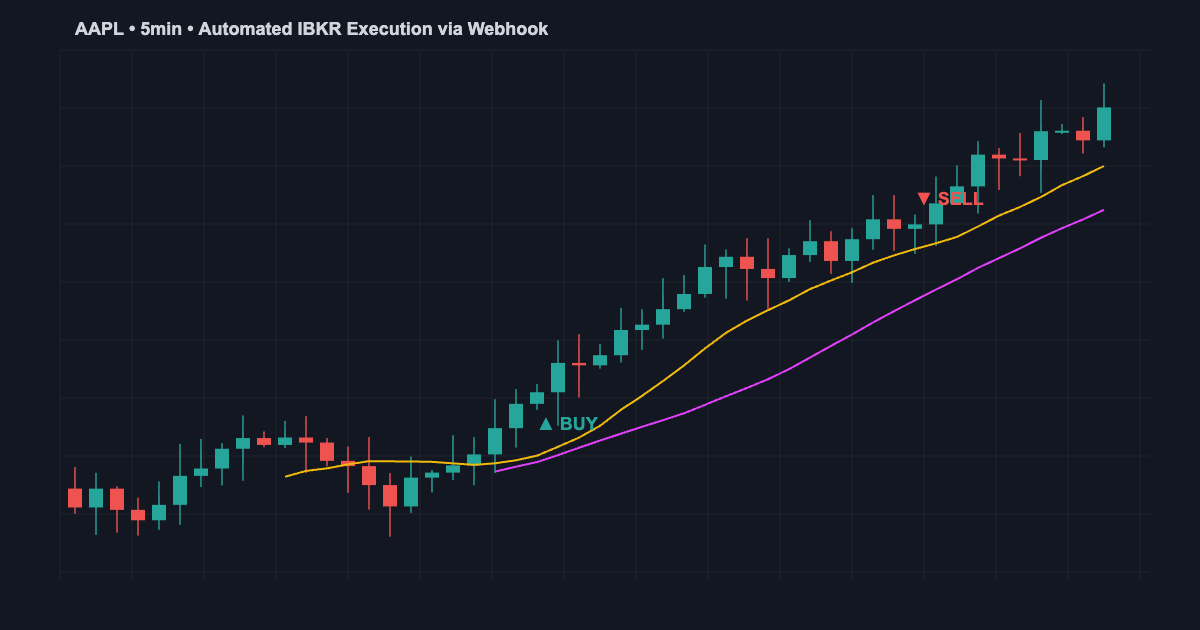
Automate your trades between TradingView and Interactive Brokers in minutes. This complete guide shows you how to set up webhook-based execution for stocks, options, and futures using the TWS API with Pine Script alerts.
Explore advanced automation at jayadevrana.com
Why TradingView + Interactive Brokers?
TradingView’s charting and Pine Script capabilities are unmatched for retail traders. Interactive Brokers (IBKR) offers deep liquidity, low commissions (~$0.70 per equity trade), and support for stocks, options, and futures. Combining them creates a professional-grade automated trading system accessible to retail traders.
TWS API vs Client Portal API: Which One?
TWS API (Trader Workstation API): Most powerful option. Requires Trader Workstation (TWS) desktop app running 24/7. Better for active traders managing multiple orders simultaneously. Supports all asset classes.
Client Portal API: Newer REST-based API, lighter weight. No requirement to run TWS. Better for cloud-based deployments. More limited order management compared to TWS API.
Recommendation: Use TWS API for maximum control and compatibility. Client Portal API is good for simplified webhook-based trading with fewer features.
Setting Up IB Gateway for Automated Trading
IB Gateway is a lightweight alternative to TWS that serves as the communication bridge between TradingView webhooks and Interactive Brokers.
Step 1: Download and Install IB Gateway
Visit ibkr.com/en/trading/platforms/ib-gateway and download the latest version. Run the installer and complete the initial setup.
Step 2: Configure Account Credentials
Launch IB Gateway and log in with your Interactive Brokers account credentials. Enable API access in Account Management under Settings > API > Trusted IPs. Add your server IP address or use 127.0.0.1 for local testing.
Step 3: Set Account to Paper Trading (Optional)
In IB Gateway settings, switch to Paper Trading mode before testing. This prevents accidental live trades while developing your automation.
Step 4: Configure API Socket Port
Default socket port for IB Gateway is 4002 (paper trading) or 4001 (live). Note this for webhook bridge configuration.
Pine Script Alert Setup for IBKR
Create a Pine Script strategy that generates buy/sell signals. Here’s a basic template:
//@version=5
strategy(title='IBKR Auto Trade', shorttitle='IBKR_AT')
fast_ema = ta.ema(close, 9)
slow_ema = ta.ema(close, 21)
if ta.crossover(fast_ema, slow_ema)
    strategy.entry('Buy', strategy.long, alert_message='ORDER|BUY|100|AAPL|MKT')
if ta.crossunder(fast_ema, slow_ema)
    strategy.close('Buy', alert_message='ORDER|SELL|100|AAPL|MKT')
The alert_message parameter passes order details directly to your webhook bridge. Format: ORDER|SIDE|QUANTITY|SYMBOL|ORDER_TYPE
Webhook Bridge Setup (Node.js + Express)
You need a webhook receiver to translate TradingView alerts into IBKR orders. Here’s a minimal Node.js example:
const express = require('express');
const { IBKRClient } = require('ibkr-client');
const app = express();
app.use(express.json());

const ibkr = new IBKRClient({
  host: '127.0.0.1',
  port: 4002,
  clientId: 1
});

app.post('/webhook', async (req, res) => {
  const { ORDER, SIDE, QUANTITY, SYMBOL, ORDER_TYPE } = req.body;
  if (!ORDER) return res.status(400).send('Invalid order');

  try {
    const orderId = await ibkr.submitOrder({
      symbol: SYMBOL,
      action: SIDE,
      totalQuantity: QUANTITY,
      orderType: ORDER_TYPE
    });
    res.json({ success: true, orderId });
  } catch (err) {
    res.status(500).json({ error: err.message });
  }
});

app.listen(3000, () => console.log('Webhook listening on port 3000'));
Handling Different Order Types
Market Orders: Execute immediately at the best available price. Format: ORDER|BUY|100|AAPL|MKT
Limit Orders: Execute only at or better than specified price. Format: ORDER|BUY|100|AAPL|LMT|125.50
Stop Orders: Trigger when price hits the stop level. Format: ORDER|SELL|100|AAPL|STP|118.00
Stop-Limit Orders: Combine stop and limit logic. Format: ORDER|BUY|100|AAPL|STP LMT|130.00|129.50
Multi-Asset Trading (Stocks, Options, Futures)
Stock Orders: ORDER|BUY|100|AAPL|MKT
Options Orders: ORDER|BUY|10|AAPL 230317C00125000|MKT (use full contract specs)
Futures Orders: ORDER|BUY|1|ES|MKT (micro E-mini S&P 500)
Interactive Brokers supports all three asset classes through a unified API. Adjust contract symbols according to IBKR naming conventions.
FAQ: Troubleshooting Common Issues
Q: Webhook fires but order doesn’t execute
A: Check that IB Gateway is running and you’ve whitelisted the webhook server IP in Account Management. Verify the order format matches IBKR requirements.
Q: Getting “Order rejected” errors
A: Validate that you have sufficient buying power, the symbol is correct, and the order type is supported by your account type.
Q: How do I test without risking real money?
A: Always use Paper Trading mode first. Login to IB Gateway, go to Settings, and switch to Paper mode. All orders will execute against simulated price data.
Q: Can I run multiple strategies simultaneously?
A: Yes, but manage position limits and margin carefully. IBKR will reject orders that exceed account buying power. Set position size limits in Pine Script.
Compare other platforms and brokers for automated trading
Check our full comparison of top algo trading platforms in the USA
Need help setting up your Interactive Brokers automation? Our team can configure your TradingView-to-IBKR pipeline and get you trading automated strategies within hours.
Get in touch via WhatsApp for technical support.
About the Author