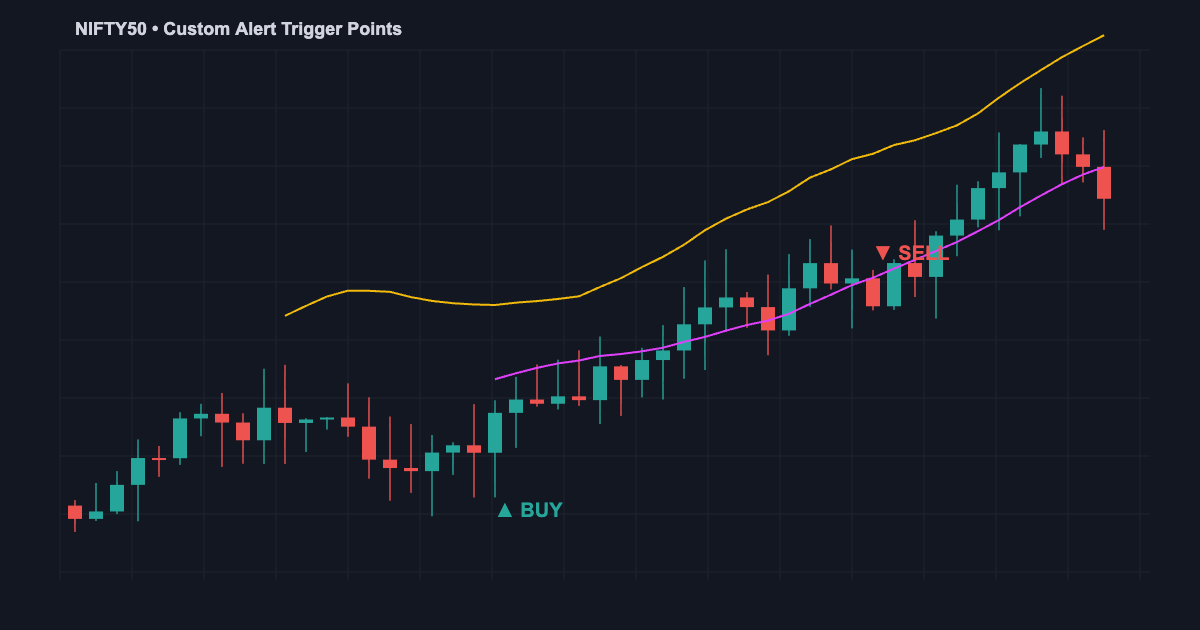
Custom alerts in TradingView are a game-changer for traders who want to automate their entry and exit signals without staring at charts all day. Whether you’re a day trader in Mumbai or building a full trading bot, Pine Script’s alert system lets you trigger notifications, webhooks, and automated actions the moment your conditions are met.
In this guide, I’ll walk you through creating professional-grade alerts using Pine Script, from simple single-condition alerts to complex multi-signal systems that integrate with brokers and Discord servers.
Need a custom Pine Script solution? Jayadev Rana builds professional indicators and strategies for traders who want alerts without the headache of coding them themselves.
Understanding TradingView Alerts vs. alertcondition()
TradingView offers two alert mechanisms: the built-in alerts you can create from the UI, and the alertcondition() function in Pine Script. Here’s why alertcondition() is more powerful:
- Precision: Fire alerts based on exact indicator values, not just price
- Webhooks: Send JSON payloads directly to your bot or broker bridge
- Reusability: Anyone using your indicator can set alerts on your conditions
- Multiple conditions: Create separate alert types within one indicator
Creating Your First Pine Script Alert
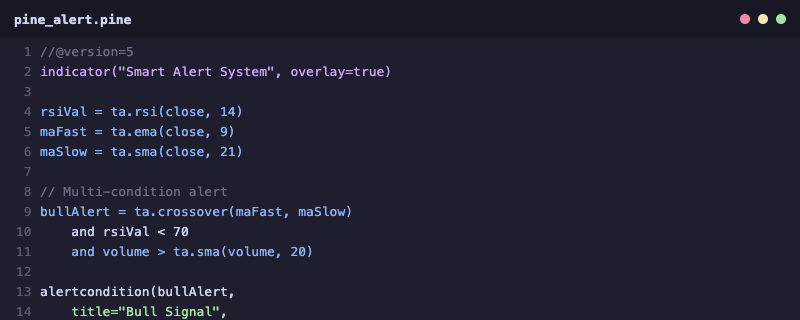
The alertcondition() function takes three parameters: a boolean condition, a title for the alert dialog, and a message. Here’s the basic syntax:
//@version=5
indicator("Simple Alert Demo", overlay=true)

// Define your condition
smaFast = ta.sma(close, 9)
smaSlow = ta.sma(close, 21)

bullishCross = ta.crossover(smaFast, smaSlow)
bearishCross = ta.crossunder(smaFast, smaSlow)

// Create alerts
alertcondition(bullishCross, title="Bullish Crossover", message="{{ticker}} Golden Cross at {{close}}")
alertcondition(bearishCross, title="Bearish Crossover", message="{{ticker}} Death Cross at {{close}}")

plot(smaFast, color=color.blue, title="Fast SMA")
plot(smaSlow, color=color.red, title="Slow SMA")
The double-brace placeholders like {{ticker}} and {{close}} are TradingView’s built-in variables that get replaced with actual values when the alert fires.
Multi-Condition Alert Systems
Real trading requires multiple conditions aligning before you take action. Here’s how to build a multi-filter alert that checks RSI, moving average trend, and volume simultaneously:
//@version=5
indicator("Multi-Filter Alert System", overlay=true)

// Inputs
rsiLength = input(14, "RSI Length")
maLength = input(50, "Trend MA Length")
volMultiplier = input(1.5, "Volume Spike Multiplier")

// Calculations
rsiVal = ta.rsi(close, rsiLength)
trendMA = ta.ema(close, maLength)
avgVolume = ta.sma(volume, 20)

// Multi-condition buy signal
buySignal = rsiVal < 35 and close > trendMA and volume > avgVolume * volMultiplier

// Multi-condition sell signal
sellSignal = rsiVal > 75 and close < trendMA and volume > avgVolume * volMultiplier

alertcondition(buySignal, title="Strong Buy", message="STRONG BUY: {{ticker}} RSI oversold + above trend + volume spike")
alertcondition(sellSignal, title="Strong Sell", message="STRONG SELL: {{ticker}} RSI overbought + below trend + volume spike")
This ensures you only get alerted when all three conditions align, dramatically reducing false signals compared to single-indicator alerts.
Webhook Alerts for Trading Automation
Webhook alerts are where Pine Script alerts become truly powerful. Instead of just getting a notification on your phone, you can send structured data to external services that execute trades automatically.
To set up webhook alerts, create a JSON payload in your alert message:
alertcondition(buySignal, title="Webhook Buy",
  message='{"action":"buy","symbol":"{{ticker}}","price":{{close}},"qty":10}')
This JSON payload can be received by webhook bridges like TradingView webhook connectors that forward orders to Zerodha, Upstox, or other Indian brokers.
If building this yourself feels overwhelming, you can connect with a Pine Script expert on WhatsApp for a custom solution.
Alert Best Practices and Limitations
Before you deploy alerts in production, keep these important points in mind:
- alertcondition() only works in indicators, not strategies. If you need alerts from a strategy, use the
alert()function instead. - Free TradingView accounts are limited to 1 active alert. Premium plans allow up to 800 server-side alerts.
- Server-side vs client-side: alertcondition() alerts run on TradingView’s servers 24/7, even when your browser is closed. This is crucial for automation.
- Avoid repainting conditions: If your indicator repaints, your alerts will fire on phantom signals. Always test with non-repainting indicator logic.
- Rate limits: TradingView throttles alerts to prevent spam. If 10+ alerts fire in rapid succession, some may be delayed.
FAQ: TradingView Custom Alerts
Q: Can I create alerts that trigger once per bar or every tick?
A: Yes. When setting up the alert in TradingView’s UI, you can choose “Once Per Bar Close” (most reliable), “Once Per Bar” (triggers on first tick), or “Every Tick.” For automation, always use “Once Per Bar Close” to avoid false signals from intra-bar movement.
Q: How do I send alerts to Telegram or Discord?
A: Use webhook alerts with the bot URL from Telegram (via BotFather) or Discord (via channel webhook settings). Format your alert message as the platform expects. Third-party services like 3Commas and Alertatron also bridge TradingView alerts to messaging platforms.
Q: Why isn’t my alertcondition() showing up in the alert dialog?
A: Make sure your script is an indicator(), not a strategy(). Also verify the script is added to your chart. alertcondition() functions only appear after the indicator is applied.
Q: Can I backtest alert-based strategies?
A: Not directly. alertcondition() doesn’t support backtesting. Convert your logic to a strategy() script with strategy.entry() and strategy.exit() calls to backtest on TradingView.
Need a Custom Pine Script Solution?
Jayadev Rana is a professional Pine Script developer who builds custom indicators, strategies, and automated trading systems for TradingView.
About the Author